Ads 468x60px

Showing posts with label #How to........ Show all posts

Sunday, 26 November 2017

Zingoy – Get Rs 25 FreeCharge Cashback + 50 ZingCash+ on Rs 100 or Above Purchase via FreeCharge Wallet [ Loot ]

Zingoy is a Cashback providing website, now they have come up with their own marketplace where they sell Gift vouchers of various Websites. Now they have even allowed their users to sell their unused gift vouchers to other users online for this service they took small processing fee and rest all yours.
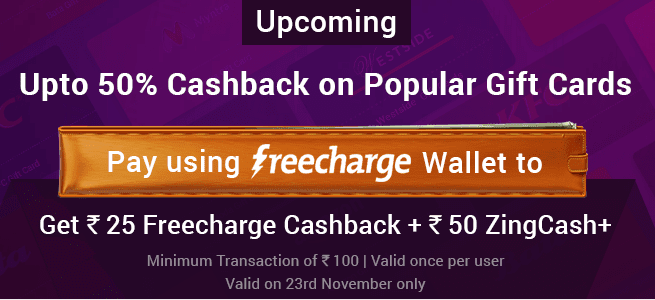
Now Buy Gift cards from Zingoy & enjoy upto 50% Cashback on Gift cards + Extra Get Rs 25 FreeCharge Cashback + 50 ZingCash+ on a minimum gift card purchase Rs 100 or Above via FreeCharge Wallet.

How to Avail the Offer ?

  • Visit Zingoy to Sign up for a new account
  • Make sure to use Referral code – “ABHCHA11” on Sign up to get bonus
  • Now Visit Here and Click on Stores > Gift Cards
  • Now Select the gift card you want to buy
  • Select Denomination of Rs.100 or above
  • Proceed to Payment > Select FreeCharge Wallet
  • Complete the payment. You will get Rs.25 Cashback in FreeCharge + Extra 50 ZingCash+ in your Zingoy account within 48 hours of the transaction.
  • That’s it! Enjoy the deal!

Terms & Conditions :-

  • Get Flat Rs.25 Freecharge Cashback when you pay with FreeCharge on Zingoy
  • Valid on minimum purchase of Rs.100
  • And also get Rs.50 Zingcash+ in Zingoy account within 48 hours of the transaction.
  • Offer is valid once per user
  • The offer is valid from 23rd Nov’ 2017 to 23rd Dec’ 2017
  • Offer is applicable on Zingoy website,msite & App
  • FreeCharge cashback will be credited to FreeCharge wallet within 24 hours
  • The entire invoice value has to be settled using FreeCharge Wallet, partial payment not allowed
  • In case of complete or partial order cancellation/return, entire cashback amount will be deducted from the total refund
  • Cashback amount will be in form of e-Voucher and valid for 6 months from the date of credit in Freecharge account
  • In case of order cancellation, refund by FreeCharge wallet will be processed within 7 to 10 working days
  • This offer is open to all FreeCharge Wallet Account holders whose accounts are valid and verified
  • The cashback offer is non-transferable, non-binding and non-encashable
  • For any other queries on Zingoy/related to Zingcash+, please call +918080603868 or write to support@zingoy.com. Write to care@freecharge.com for all issues/queries/complaints related to FreeCharge offer
  • FreeCharge & Zingoy reserve the right to amend, modify, change, add or terminate (collectively change) the terms, contained herein at our sole discretion or withdraw this offer without any further notice
  • Source/Official Statement – Click here

Saturday, 25 November 2017

Get 50% Instant OFF on Movie Tickets BookmyShow + 50% Cashback via Amazon Pay

Hello All, 
Here comes the yet another BookmyShow instant off voucher, coupon & promo code to get the best-discounted offer for watching your favorite movie over your the more significant and broader screen as of now one can Get 50% Instant OFF on Movie Tickets BookmyShow + 50% Cashback via Amazon Pay.
Movie Tickets BookmyShow
  1. First, visit Bookmyshow or Download free App.
  2. Login or Register free account on Bookmyshow.
  3. Turn location On or Select Your City then followed by the same Choose your Movie, Timing, and the minimum of 2 Seats.
  4. Proceed to Checkout.
  5. Now there Click on “Avail Offers.“
  6. Apply Coupon:- BMS125 or JOY150
  7. Another Coupon:- (Selected Users only)
  8. Once your coupon code applied successfully, You will get the 50% Instant OFF up to Rs 125 min of Rs 100.
  9. Finally now make Payment of the remaining amount using any Amazon Pay Payment mode.
  10. Once the transaction completes, You will get the 50% Cashback up to Rs 100 in your Amazon Pay wallet.
Movie Tickets BookmyShow Terms & Conditions:
  1. This is a Limited Period Offer.
  2. A minimum of 2 movie tickets needs to be purchased to avail the discount on movie tickets. Max discount on Movie Tickets is Rs 125 or 50% of tickets value whichever is lower.
  3. A minimum of Rs 200 of Movie Snacks needs to be purchased to avail the discount on Movie Snacks. Max discount on Movie Snacks is Rs 75 or 25% of Snacks value whichever is lower.
  4. The offer can be availed once per user during the offer period.
  5. The discount Code is valid only on movie transactions and can be redeemed on BookMyShow mobile app and website. Please update your mobile app and avail the offer.
  6. The discount is applicable only to the ticket price. It excludes all fees and taxes.
  7. BookMyShow reserves the right to withdraw or modify this offer at any time without prior notice. In case of any dispute, the decision of BookMyShow will be final.
  8. This offer cannot be combined with any other offers/discounts/promotions on BookMyShow.
  9. Offer valid only to users who have received direct communication from BookMyShow.
  10. Offer valid in select cities only. Offer Valid in select cinemas.
  11. If at any point, BookMyShow verifies the usage of the offer code violates the Terms & Conditions or is abusive to the spirit of the offer, BMS reserves the sole right to suspend the user from the offer and deny any future offers on BookMyShow platforms.
Amazon Pay Terms & Conditions:
This offer is a joint promotional initiative provided by Big Tree Entertainment Pvt. Ltd. (“Merchant”) and Amazon Online Distribution Services Private Limited (“Amazon”). “This offer is made available to you by Amazon Online Distribution Services Private Limited (“Amazon”) on the Website (defined below) maintained and operated by Big Tree Entertainment Pvt. Ltd. (“Merchant”).”
  1. The Offer is valid from 24th November 2017 to 3rd December 2017 both days inclusive (“Offer Period”), unless revoked or extended by Amazon in its sole discretion, without assigning any reason, without prior notice, and without liability of any kind.
  2. Under this Offer, cashback of 50% to INR 100, Once per user, will be provided to each customer who:
  3. (a) completes a transaction on the website of the Merchant at BookMyShow or its corresponding mobile application/mobile site (collectively “Website”), and
  4. (b) pays for such transaction using the “Amazon Pay” option available on the Website
  5. (Each transaction meeting the aforesaid requirements being referred to as a “Qualifying Transaction”).
  6. Cashback for a Qualifying Transaction will be provided in the form of Amazon Pay Balance. Amazon Pay balance is a sum of all balances associated with Amazon Gift Cards. Amazon Gift Cards are issued Qwikcilver Solutions Private Limited and are subject to the Gift Card Terms and Conditions available at http://www.amazon.in/gp/help/customer/display.html?nodeId=201522810
  7. These Offer terms and conditions (“Offer Terms”) are in addition to the Gift Card Terms and Conditions. To the extent the Gift Card terms and conditions are inconsistent with these Offer Terms; these Offer Terms will prevail concerning the Offer only.
  8. Amazon reserves the right to disqualify any customer from the benefits of the Offer, at its sole discretion, if it identifies any fraudulent activity being carried out to avail the benefits under the Offeror for any reason whatsoever.
  9. This Offer cannot be combined with any other offer or promotion made available by Amazon on the Website.
  10. This Offer can only be availed once by each customer. Additionally, and for the avoidance of doubt, Amazon Pay Balance will only be provided for the first Qualifying Transaction (and not for any subsequent transactions) made by the customer during the Offer Period.
  11. This Offer is valid for Indian residents only.
  12. The Amazon Pay Balance will be sent to the registered email ID of the customer making the Qualifying Transaction within 72 hours of such Transaction.

Top 5 Best Highest Paying URL Shortener Websites to Make Money Online [ November 2017 ]

Have you ever tried to make Money via URL Shortener websites? Yeah, you heard it right. You can earn handsome money by using URL shortener site just by sharing the links. It is one of the easiest methods to make money nowadays.
So, if you have questions in your mind like – What is URL Shortener Website? How to earn money using URL Shortener? What are the best URL shortener sites to make money online? Then, keep reading and you will get the answer to all your questions related URL shortener website.

What is URL Shortener Sites?

URL Shortener is a site or service which lets you shorten any long URLs from any website on the Web. In other words, they provide you the short URL of any long URL and whenever someone opens that shorten URL they will go through a few sec ads (generally 5 sec) before redirecting to the original URL. For every click on your Links, you will get money. That means whenever someone opens your shorten links, some money will be added to your account.
Sharing links become a habit for internet users. We always share website links with our friends especially on Facebook, Twitter, Google plus, YouTube etc without the intention of making money. Some blogger or other people also share downloading links in their blog/websites or through emails.
So,why not to make money by sharing URL (links) anywhere, anytimeYes, depending on your work you can earn huge amount of money.

How Much Can You Earn from URL Shortening Sites?

Every URL shortener sites or company pays different CPM rates. However, CPM rate depends on the country from where people is opening your shortened links. So, the $ CPM rates (paying rate) is different for the different URL shortener companies website and also different countries.
Basically, any good URL shortener sites pay to their publisher in between 1$ to 10$ per 1000 views on the shorten URL. These companies also provide referral system, means if anyone joins with your referral link then you will also get extra money upto 20% commission of their earning.

Steps to Make Money using URL Shortener in 2017:

First of all, You don’t need any technical skills to use any URL Shortening website.
So, to make money from any URL Shortener Sites you just need to do the same steps (shared below) and the basic funda is to Convert Short Link from Any Link and Share them anywhere to earn money online. So, let’s see:
  • First of all, choose your favorite URL Shortener from the list.
  • Register for an account on it. (It’s Free)
  • Go to your account and make Short URL of any Link.
  • Share that Shorten Link as much as possible on anywhere on the Internet.
  • That’s it. Whenever someone clicks on your link they will see 5 sec ads.
  • After that, he/she will be redirected to the original URL.
  • Now, whenever anyone clicks on your Links, you will earn Money.
  • Your earned money will be credited to your account.

Top 5 Highest Paying URL Shorteners (2017 Edition):


Various URL Shortener Websites are available on the internet, I made a list of Top 5 URL Shortener Websites with their mode of payment, an average earning per 1000 views as mentioned in their website and their alexa rank.

List of Best URL Shorteners in 2017

#1 Shorte.st – Highest Paying URL Shortener 2017

Shorte.st is most trusted URL Shortener or URL Shortening service available in today’s Internet world. This is the URL shortening service website with more creative ideas and the important point is that you can use their WordPress plugin and make money with links in very easy way. Whenever some one ask me about URL Shortener, Shorte.st is what comes in my mind.
 
Yeah, Shorte.st is best URL Shortener till now. It pays you approx 5-12$ per 1000 views for promoting their Shorten Link. To earn more money using Shorte.st by sharing your Short URLs on Facebook, Twitter, Blogs, WhatsApp, Hike, Google+ etc. Your earning amount (payment) will be send automatically on the 10th day of each month. I personally use this URL Shortener.

  • Payment Method: Paypal or Payoneer
  • Minimum Payout: 5$ through Paypal or 20$ through Payoneer
  • Referral Earnings Rate: 20% commission on referrals – lifetime
  • Alexa Rank (Global): 5,464

#2 Linkshrink. Net – Another best URL Shortener Website

Linkshrink.Net is also popular URL shortening website that allow users to make money anytime anywhere when anyone clicks and views your shorten links. Linkshrink pays about 2$ to 5$ per 1000 views and Through referral program you can get 10% commission from the user you referred. That means if you refer 10 users to LinkShrink and if each one of them earns $2 daily then you will be earning a total of $4 daily without any effort at all.
  • Referral Earnings Rate: 10% Earning for Lifetime.
  • Payout Option: Paypal or Payza
  • Alexa Rank (Global): 657

#3 Bc.vc – Earn Money by Sharing Link

Bc.vc is a modern URL shortener website where users can make good money in the easiest way. You can get paid by sharing your links on the internet. Just register for an account, start shrinking URLs and make money. For every person that visits you URLs and you will get paid. With Bc.vc you can earn about 4$ per 1000 views and with their referral program, you can also earn extra 10% commission for the lifetime from your referrals.
  • Referral : 10% Commission for Lifetime.
  • Minimum Payout: 10$ Through Paypal or IBANN
  • Alexa Rank (Global): 1,845

#4 AdF.ly – Most Popular URL Shortener

AdF.ly is one of the most popular and trusted URL shortening company. Just register for an account and start shrinking URLs. You will get paid when anyone visits on your URLs. With Adf.ly you can earn up to 4$ per 1000 views to your Shorten links.
  • Payment Method: Minimum Payout 5$ by Paypal, Payza or AlertPay.
  • Referral Earnings Rate: 20% Earnings For Lifetime.
  • Alexa Rank (Global): 165.

#5 Linkbucks – Link Shortener Website

Linkbuck (having Global Alexa rank 1,038) offers user to make money every time by converting and sharing shorten links. Uou can share anywhere on facebook, Google plus, Twitter, blogs, websites etc. You can create/convert single short link, multiple links or a full-page script that turns your blog/website into a cash machine if you have lots of traffic. Linkbucks is number one competitor of Adf.ly. It can pay 0.5$ to 3$ and minimum payout is 10$.
  • Referral Earning Rate: 20% Commission for Life Time.
  • Payment Option: PayPal or Payoneer.
  • Alexa Rank (Global): 10,713

Thursday, 23 November 2017

How to Disable the Window Minimize and Maximize Animations on Windows

Windows normally animates windows whenever you minimize or maximize them. These animations can be disabled, if you like, making windows hide or appear immediately. This option is available on all modern versions of Windows, including Windows 7, 8, and 10.
You’ll find this toggle in the System Properties window. To open it, head to Control Panel > System and Security > System > Advanced system settings.
You can also click Start, type “sysdm.cpl” into the search box, and press “Enter” to instantly launch this window.
Click the “Advanced” tab in the System Properties window and click the “Settings” button under Performance.
Uncheck the “Animate windows when minimizing or maximizing” option here and click “OK”.

To undo your changes and restore the default settings, just return here and set the main option back to “Let Windows choose what’s best for my computer”.From here, you can also adjust a variety of other graphical effects like whether menus and tooltips slide into view or appear without any animation. However, if you want to change the menu animation speed, you’ll need to edit the registry.
On an old PC that struggles with graphical effects, this could help speed things up. But, on any reasonably modern PC made since the Windows Vista era, this will only speed things up by skipping through the animation, which already completes smoothly and quickly.
On Windows 10, it appears that this option used to control the Start menu animation, too. However, toggling this option won’t disable the Start menu animation anymore on modern versions of Windows 10. It only controls the animations for desktop windows.

How to Migrate All Your Data From Chrome to Firefox

If you’re thinking about switching to Firefox Quantum—or at least trying to switch—Firefox makes it pretty easy. Firefox can import your bookmarks, saved passwords, browser history, and cookies directly from Google Chrome.
It can also import this data from Microsoft Edge or Internet Explorer, if you use those instead.

Migrate Your Bookmarks, Passwords, History, and Cookies


To access the Bookmarks Manager, either click the Library icon on the toolbar and click Bookmarks > Show All Bookmarks, or press Ctrl+Shift+B.Firefox normally prompts you to import data the first time you install it. However, if you had Firefox installed previously and now want to import data, you’ll need to launch the tool manually. The Import Browser Data tool is a little hidden—it’s under the Bookmarks Manager window.
Click the “Import and Backup” button on the toolbar and select “Import Data From Another Browser”. (If you just want to import bookmarks you’ve exported from Chrome or another browser as an HTML file, you can also just click “Import Bookmarks from HTML” here and then select the HTML file.)
Select “Chrome” in the Import Wizard and click “Next” to import data from Google Chrome. Ensure all Google Chrome browser windows are closed before you continue with the process.
You’ll be prompted to choose which data you want to import. If you’ve set up multiple Chrome browser profiles, you’ll first be asked which profile you want to import data from.
By default, Firefox will import Chrome’s Cookies, Browsing History, Saved Passwords, and Bookmarks. You can uncheck any of these options to only import some types of data.
Firefox will import the data and say it was imported successfully. Chrome’s bookmarks will be placed in “From Chrome” folders in your bookmarks menu and toolbar, but you can reorganize them however you like.

Download Your Add-ons

Firefox can’t import other data you may consider crucial, like your add-ons. You’ll have to hunt down equivalent extensions in the Firefox Add-ons gallery yourself.
If you use a popular add-on from a big company, there’s a good chance there’s a version of the extension for Chrome made by the same developer. Smaller, independent extensions may not be available for both browsers, but you’ll probably find an add-on that can do something similar.

Sync Your Firefox Browser Data Between Computers

Firefox has its own browser sync feature that can keep your data in sync across multiple PCs, phones, and tablets. You can check your Firefox Sync settings by clicking menu > Options > Firefox Account. If you haven’t yet signed in with a Firefox account, you can create one from here to start syncing your data.
Sign in with the same Firefox account on all your devices and your data will be synced between them, just like with Chrome. Firefox syncs open tabs, history, bookmarks, logins, add-ons, and preferences. So, once you set up Firefox once, it will sync your preferences to all your other PCs.
You can get this same data on your phone or tablet, too. Firefox offers apps for Apple’s iPhone and iPad as well as Google’s Android. They provide a way to access your Firefox bookmarks, open tabs, saved passwords, and history on your mobile devices, too.
Thankfully, with Firefox Quantum, Firefox now uses Google as the default search engine once again. Yahoo! is no longer the default, so you don’t have to worry about changing that.

Thursday, 16 November 2017

How to Get Windows 10’s Fall Creators Update Now

Microsoft has started rolling out Windows 10’s Fall Creators Update, but it will be a few months before every PC gets it. If you don’t want to wait, you can download the Fall Creators Update from Microsoft right now.

A Warning About Upgrading Early

If you choose to skip the orderly roll out, you may encounter problems with the Windows 10 operating system on your PC’s hardware. You’re installing a stable operating system, so it’s much less risky than joining the Insider Preview program and using an unstable version of Windows. However, there is a risk you could encounter bugs or other issues on your PC.It can be annoying waiting months for a big Windows 10 update to reach your PC, but there’s a reason for the delay. Microsoft normally ensures the update works on your PC’s hardware and won’t cause any problems before offering it to you via Windows Update. If there seems to be a problem on some PCs, Microsoft can pause the update for those PCs and work on fix before continuing it.
Be sure you understand and accept these risks before opting into an early upgrade.

Use Microsoft’s Update Assistant

Microsoft offers an Update Assistant tool whenever it releases one of these big Windows 10 updates. You can download this tool to manually opt into the Fall Creators Update, even if Microsoft hasn’t pushed it to your device yet. Microsoft notes that this tool is for advanced users using an officially licensed, or “genuine“, version of Windows 10.
Head to the Download Windows 10 page and click the “Update now” button to download the Update Assistant. Run it and you’ll be told your PC is not running the latest version of Windows 10.
This dialog is a little unclear if you’re not familiar with Windows 10’s build numbers. If you’re using the Creators Update, you’ll be told your PC is running “version 15063”. The tool will offer to upgrade you to version 16299, which is the final stable version of the Fall Creators Update.
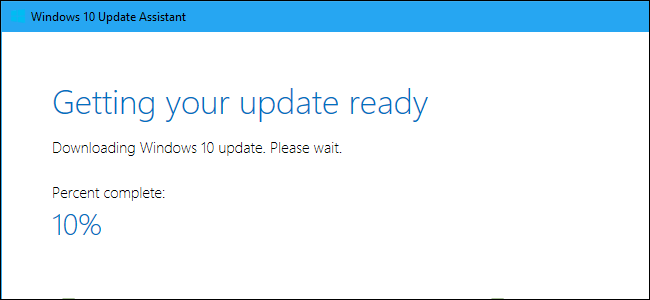
Click “Update Now” and the Update Assistant will download and install the Fall Creators Update for you. You can continue using your PC normally and even minimize the window, if you like. It will remain running in the notification area while it downloads the update.

How to Downgrade If You Have a Problem

You can only downgrade within the first ten days. You also won’t be able to downgrade if you delete the Windows.old folder or use a software program that deletes it for you, like Disk Cleanup. After ten days, Windows automatically removes the Windows.old folder to free up space, so you won’t have the option of downgrading without reinstalling Windows.If there is a problem, you can roll back to the previous version of Windows 10 you had installed. Just head to Settings > Update & security > Recovery and click the “Get started” button under “Go back to the previous version of Windows 10”.
Once you’ve downgraded, just wait until Microsoft offers you the update via Windows Update. The problem should be fixed by the time your PC receives the update normally.

Get Early Updates Next Time with the Insider Previews


If, however, you want to get updates earlier next time, you can enable Insider Previews to get a pre-release look at these features. The “Release Preview” track of Windows 10, in particular, is pretty great, since it’s much more stable than the Fast and Slow rings, and will get you new updates without having to wait for the roll out. It’s still technically an Insider Preview—one that keeps you on the stable build of Windows 10 but gives you Windows updates, driver updates, and Microsoft app updates early—so download at your own risk. But in our experience, the Release Preview is a relatively stable track with quick updates, which is great.If you’re running an Insider Preview build of Windows 10, now is a good time to leave the Insider Builds behind. If you stay on the “Fast Ring”, Microsoft will soon begin pushing you very unstable versions of the next Windows 10 update. You may want to switch to the “Slow Ring”, “Release Preview”, or even leave Insider Preview builds behind for now and use the stable version of the Creators Update. Head to Settings > Update & Security > Windows Insider Program on the Fall Creators Update to choose your Insider Preview settings.

Saturday, 8 April 2017

How to install PyCharm IDE by JetBrains for Python ( free community edition ) in Ubuntu

Hello guyz..

The official installation instructions :-
  • Copy the pycharm-*.tar.gz to an empty directory
    (make sure you have rw permissions for that directory)
  • Unpack the pycharm-*.tar.gz using the following command:
    tar xfz pycharm-*.tar.gz
  • Remove the pycharm-*.tar.gz to save disk space (optional)
  • Run pycharm.sh from the bin subdirectory
NOTE: PyCharm on Linux doesn't need special installation or running any installation script. It runs out of the pycharm-*.tar.gz

But there is already a version of PyCharm Community Edition available through the unofficial GetDeb repository :-


This does not only provide easier installation, but also automatic package updates.
You can simply add this repository to your configuration and install PyCharm from the terminal
(Ctrl+Alt+T) by executing the following four commands:
  1. Configure the repository (your correct Ubuntu release name gets inserted automatically):
    echo "deb http://archive.getdeb.net/ubuntu $(lsb_release -cs)-getdeb apps" | sudo tee /etc/apt/sources.list.d/getdeb-apps.list
  2. Retrieve and add the repository's signature key:
    wget -q -O- http://archive.getdeb.net/getdeb-archive.key | sudo apt-key add -
  3. Update your package lists:
    sudo apt-get update
  4. Install PyCharm:
    sudo apt-get install pycharm

Saturday, 4 February 2017

How To Remove Jio 1GB Limit Trick to Get Unlimited Internet (100% Working Trick)

What is Jio 1GB Limit:

In case if you are a new jio user let me warn you on one point, although jio claimed that they are giving unlimited internet but the daily 4G internet is reduced to jio 1gb limit. Which means you won’t get 4G speed after 1GB. Same problem with preview offer, all the remaining offers are completely free like unlimited voice calls and messages. Jio claims that more than 80% users are using less than 1GB data. So with this less cap, we can get the high-speed connection.

Steps to Bypass Jio 1GB Daily Limit Trick:

  • First, visit myjio application and then Open myjio app to check your present balance.
  • Then close the application and visit your mobile settings option
  • After that go to time & Date option and change the date to next 2 days
  • Now visit myjio app it will show your balance is Zero
  • But don’t worry you can use unlimited data without any limitations
if you are confused about changing the date, here is one example. Today’s date is 4th Feb, change the date to Feb 5th and then visit myjio app to check the data. It will show zero balance but you can use unlimited data.

Steps to remove Jio 1GB limit per day:

  • Visit APN Settings and set protocol as ipv4/ipv6
  • Open UC browser and download few items till the data reaches 100 MB
  • This will give you one warning and your internet speed will go down
  • Now just resume the downloads if it works keep on going
  • Change the protocol to ipv6, now turn on jio internet and just do browsing
  • Browse till 50-60 MB then restart the mobile
  • Repeat the same process to use 6-8 MB
  • Then again change the protocol to ipv4/ipv6

Friday, 3 February 2017

How to Assign a Static IP Address in Windows 7, 8, 10


When organizing your home network it’s easier to assign each computer it’s own IP address than using DHCP. Here we will take a look at doing it in XP, Vista, Windows 7, Windows 8.x, and Windows 10.

If you have a home network with several computes and devices, it’s a good idea to assign each of them a specific address. If you use DHCP (Dynamic Host Configuration Protocol), each computer will request and be assigned an address every time it’s booted up. When you have to do troubleshooting on your network, it’s annoying going to each machine to figure out what IP they have.

Using Static IPs prevents address conflicts between devices and allows you to manage them more easily. Assigning IPs to Windows is essentially the same process, but getting to where you need to be varies between each version.

Windows 7 or Windows 8.x or Windows 10

To change the computer’s IP address in Windows, type network and sharing into the Search box in the Start Menu and select Network and Sharing Center when it comes up. If you are in Windows 8.x it will be on the Start Screen itself, like the screenshot at the top of this article. If you’re in Windows 7 or 10 it’ll be in the start menu.

1start menu

Then when the Network and Sharing Center opens, click on Change adapter settings. This will be the same on Windows 7 or 8.x or 10.

2adapter

Right-click on your local adapter and select Properties.

3local area connection

In the Local Area Connection Properties window highlight Internet Protocol Version 4 (TCP/IPv4) then click the Properties button.

4properties

Now select the radio button Use the following IP address and enter in the correct IP, Subnet mask, and Default gateway that corresponds with your network setup. Then enter your Preferred and Alternate DNS server addresses. Here we’re on a home network and using a simple Class C network configuration and Google DNS.

Check Validate settings upon exit so Windows can find any problems with the addresses you entered. When you’re finished click OK.

5entersettings

Now close out of the Local Area Connections Properties window.

6closeoutof

Windows will run network diagnostics and verify the connection is good. Here we had no problems with it, but if you did, you could run the network troubleshooting wizard.

7verify

Now you can open the command prompt and do an ipconfig  to see the network adapter settings have been successfully changed.

8verify

Wednesday, 27 January 2016

Fileice Latest Survey Bypassing Trick | 100% Confirmed Working [ January - February 2016 ]


Hello Folks !! Today We Are Again Back With One Of The Most Demanded Trick On Internet That Is Fileice Survey Bypassing Trick ! . As We All Know Old Fileice Tricks Were Banned So We Worked Hard And After A long Research We Have Find A New Way To Complete Fileice Surveys Easily And Yes Its Working . We Are First To Post Fileice Survey Bypassing Trick In 2016!!

Requirements :

  • Indian Ip
  • Pc / Mobile
  • Internet Connection 
  • Browser
  • Brain :p
Note :

  • Only applicable For Indian Users!
  • Clear Cahe And Cookies Every Time .
  • You Can Also Use Your Friend's/Relatives/Neighbour Mobile No. For Survey Purpose

How To Easily Bypass Fileice Surveys In 2 Minutes ?

  • First To All Clear Your Browser Cookies And Cahe
  • After That Switch To " Private Mode "
  • Now Go To Fileice Survey Page And Choose This Survey " Get Rs 2700 In Coupons From AmericanSwan " !
 
  • After That You Will Be Redirected To A Page
  • Fill The Form " Email , Password , Gender And Your Mobile No "
  • For Email You Can Use " Fakemailgenerator.com "
  • After That Click On Men/Women ( Depends On You :p )
  • Soon You Will Receive A OTP On Your Registered Mobile No.
  • Now Just Input That OTP Number On The " Pop UP Page "
 
  • Click On Confirm !!
  •  Yay!! Your File Has Been Unlocked :D


Enjoy Guys!! Keep Visiting..
 
^ Scroll to Top